Get a client to connect their own social accounts
Asking a client for their Instagram password is a bad look and a security problem. Instead, send them a client connector link: a short-lived, single-purpose page where they connect their own accounts to one project. They never need a Quocia account, and they never see your workspace.
Before you start
The project must be Active. A draft can't connect platforms, so the option isn't in its menu.
You need the Link platforms administration right (the owner always has it).
Send the link
- On the project card, click the gear icon. On an Active project the menu includes Send client link.
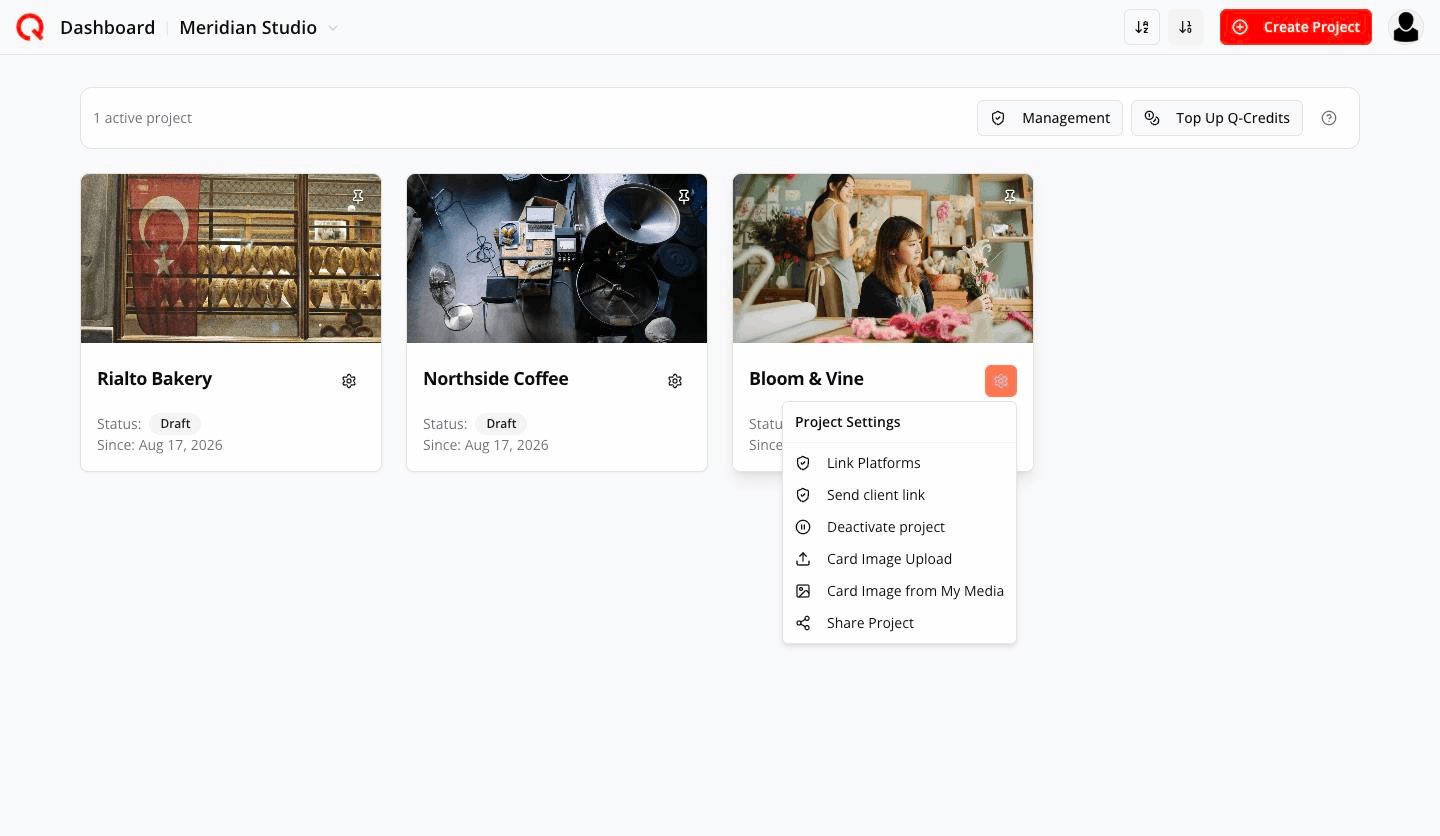
Active project menu - Fill in the dialog.
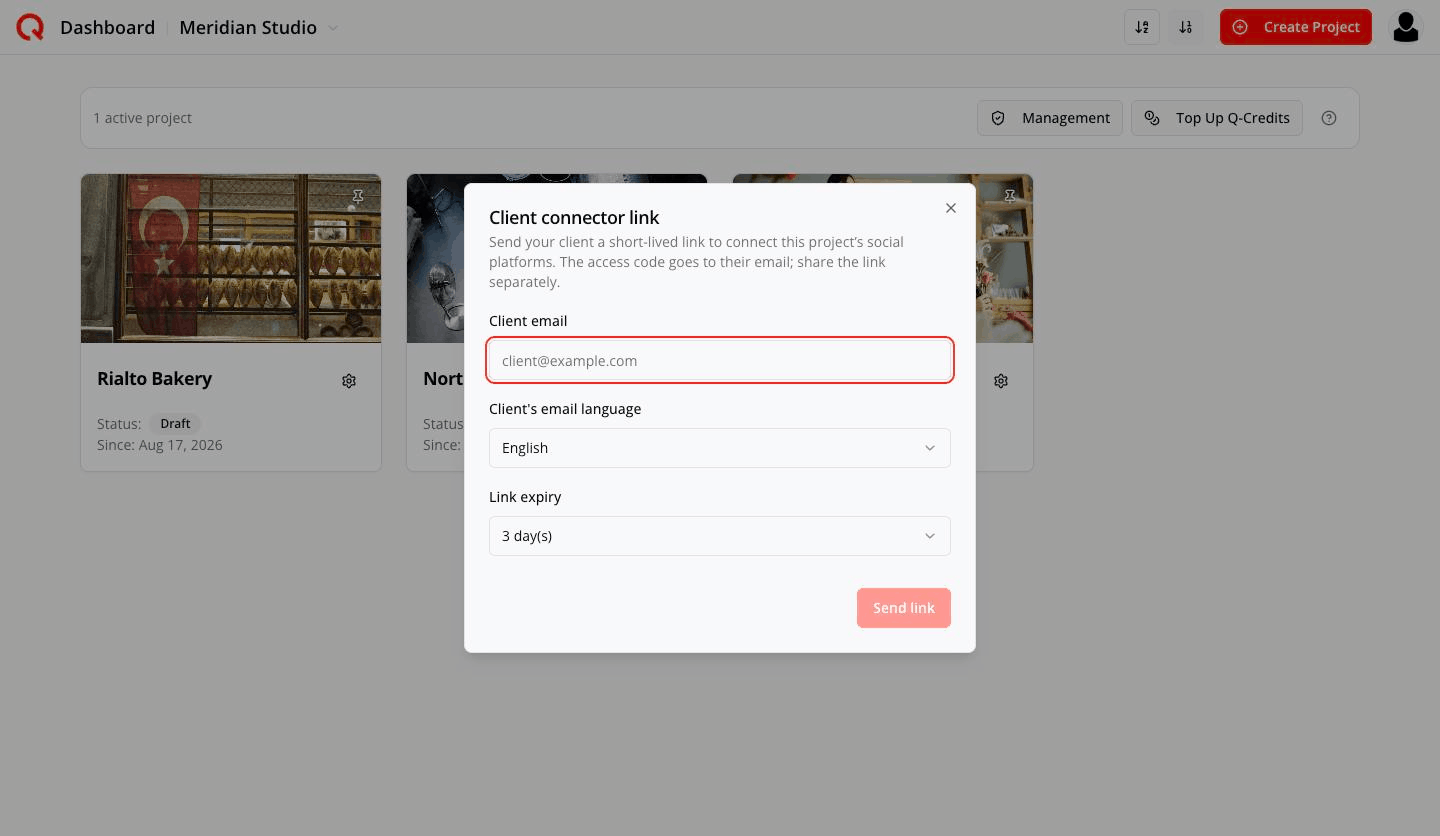
Client connector link - Client email — where the access code is sent
- Client's email language — the language the email is written in
- Link expiry — 1 to 7 days (default 3)
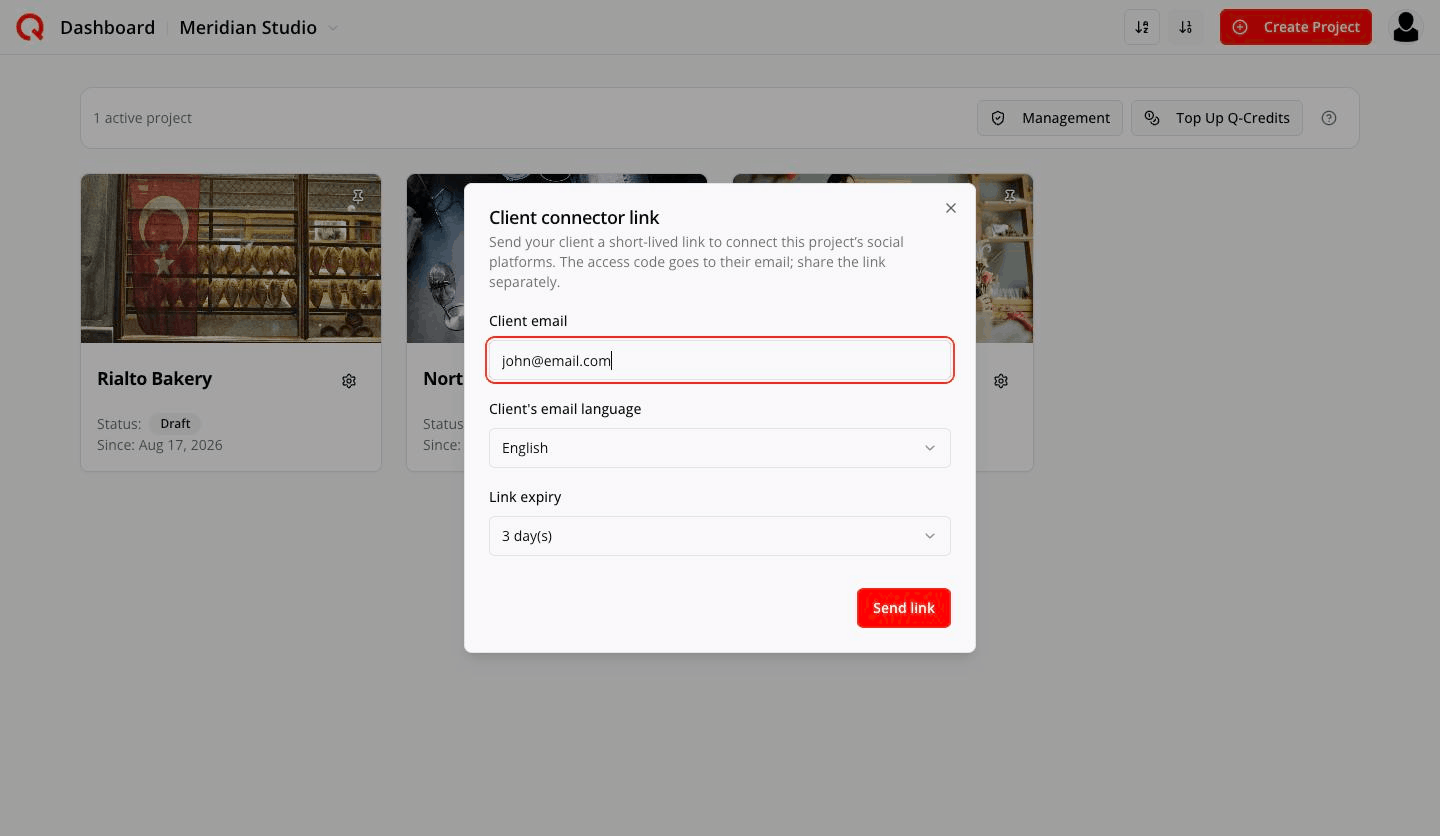
Filled in - Click Send link.
Client connector link
Send your client a short-lived link to connect this project’s social platforms. The access code goes to their email; share the link separately.
The two-piece handover — and why
Quocia deliberately splits the handover in half:
- The access code is emailed to your client.
- The link itself is not in that email. You copy it from the confirmation panel and send it however you normally talk to them — WhatsApp, Slack, a chat message. The panel says so: Share this link with your client (for example by chat). It is not in the email.
An intercepted email is useless without the link, and an intercepted link is useless without the code. Copy the link with the Copy button; the confirmation reads:
The access code was emailed to john@email.com. Share the link with them separately.
What your client sees
They open the link and get one small page:
Connect social platforms
Enter the access code from your email to continue to the platform connection page.
[ Access code: XXXXX-XXXXX ] → Continue
Then the platform picker, where they click each account to connect:
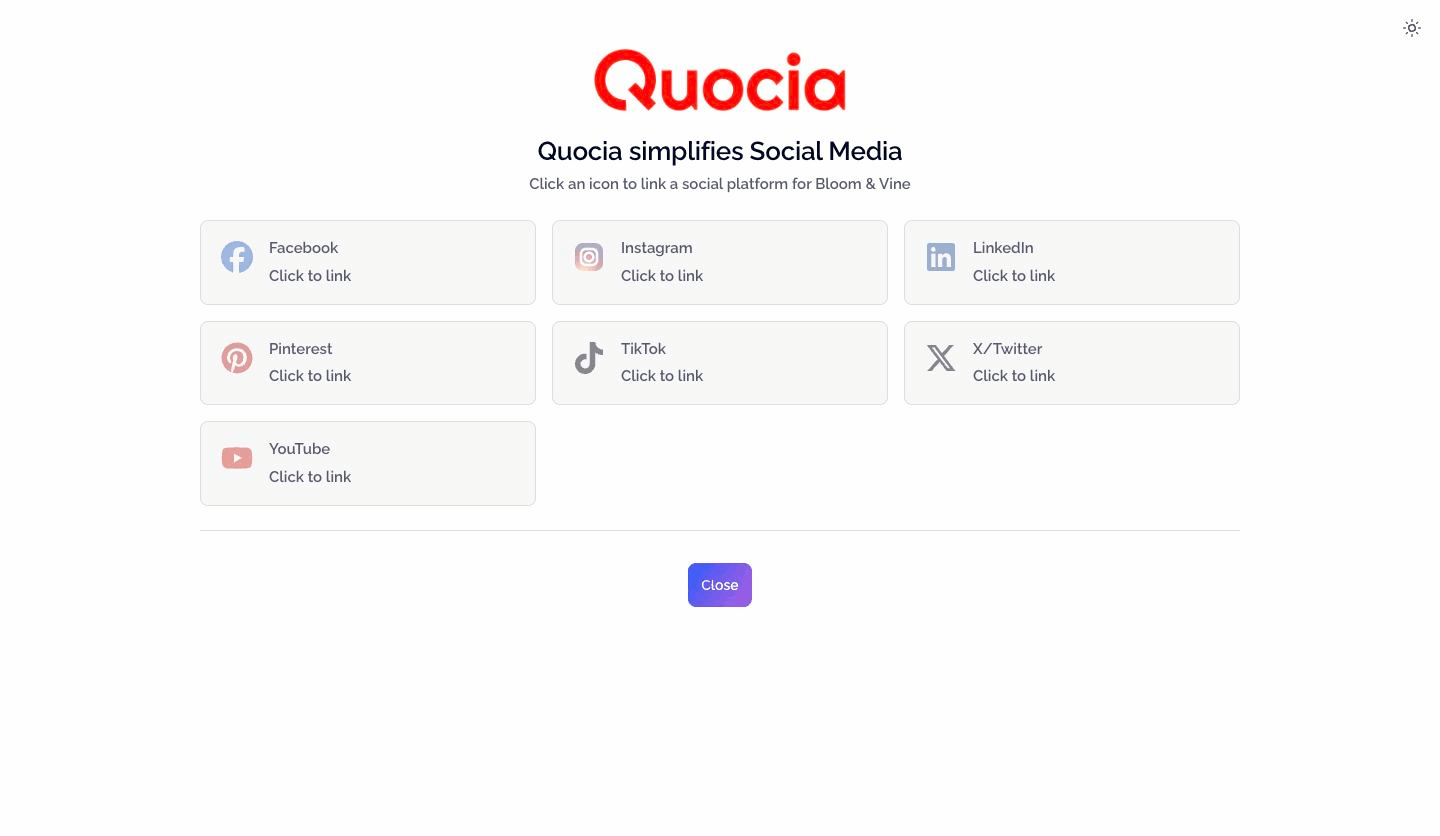
When they're done:
Platform connection completed. You can close this page.
That's the whole experience. No sign-up, no password, no access to anything else.
Managing an existing link
Reopen Send client link on the same project and the dialog tells you where things stand:
- Still valid —
A link for john@email.com is active until 17 Aug 2026. Resending replaces it with a new code.
- Expired —
The previous link for jo••@email.com has expired. Send a new one.
The button becomes Resend with new code.
There is one valid link per project. Sending a new one replaces the old.
Frequently asked
Does my client need a Quocia account? No.
Can they see my other clients? No. The page reaches exactly one project's platform connections.
How long is the link good for? You choose, 1 to 7 days. It stops working after that.
They lost the email — can I resend? Yes. Resend with new code issues a fresh code and invalidates the old one.
Can I connect the accounts myself instead? Yes — gear → Link Platforms takes you to the same platform picker.
What if the project is still a Draft? Activate it first. Drafts cannot connect platforms.