Quick start: your first week on the Agency plan
Reading time: 6 minutes.
The Agency plan gives you one workspace for all your client projects — pooled Q-Credits, pooled storage, one bill. This guide takes you from buying the plan to a client project that is Active and posting.
The one idea that makes everything else make sense
Every project in an Agency is in one of two states:
| Draft | Active | |
|---|---|---|
| Costs a plan slot | No — free, unlimited-ish | Yes — one slot |
| Build strategy, generate posts | Limited | Yes |
| Connect social accounts | No | Yes |
| Publish / schedule posts | No | Yes |
| Can be deleted | Yes | No |
You start a project and do pitch work in Draft for free. You only pay for a project the moment you make it Active — and you can deactivate it back to Draft again when the client leaves, or when you want the project suspended.
Step 1 — Buy the plan
Agency is bought from an existing free Personal project, which then becomes the first project in your new Agency workspace.
- Open your Dashboard. If you already belong to an Agency workspace, use the workspace picker next to it to switch to Personal. If you have never had one, there is no picker — you are already in Personal.
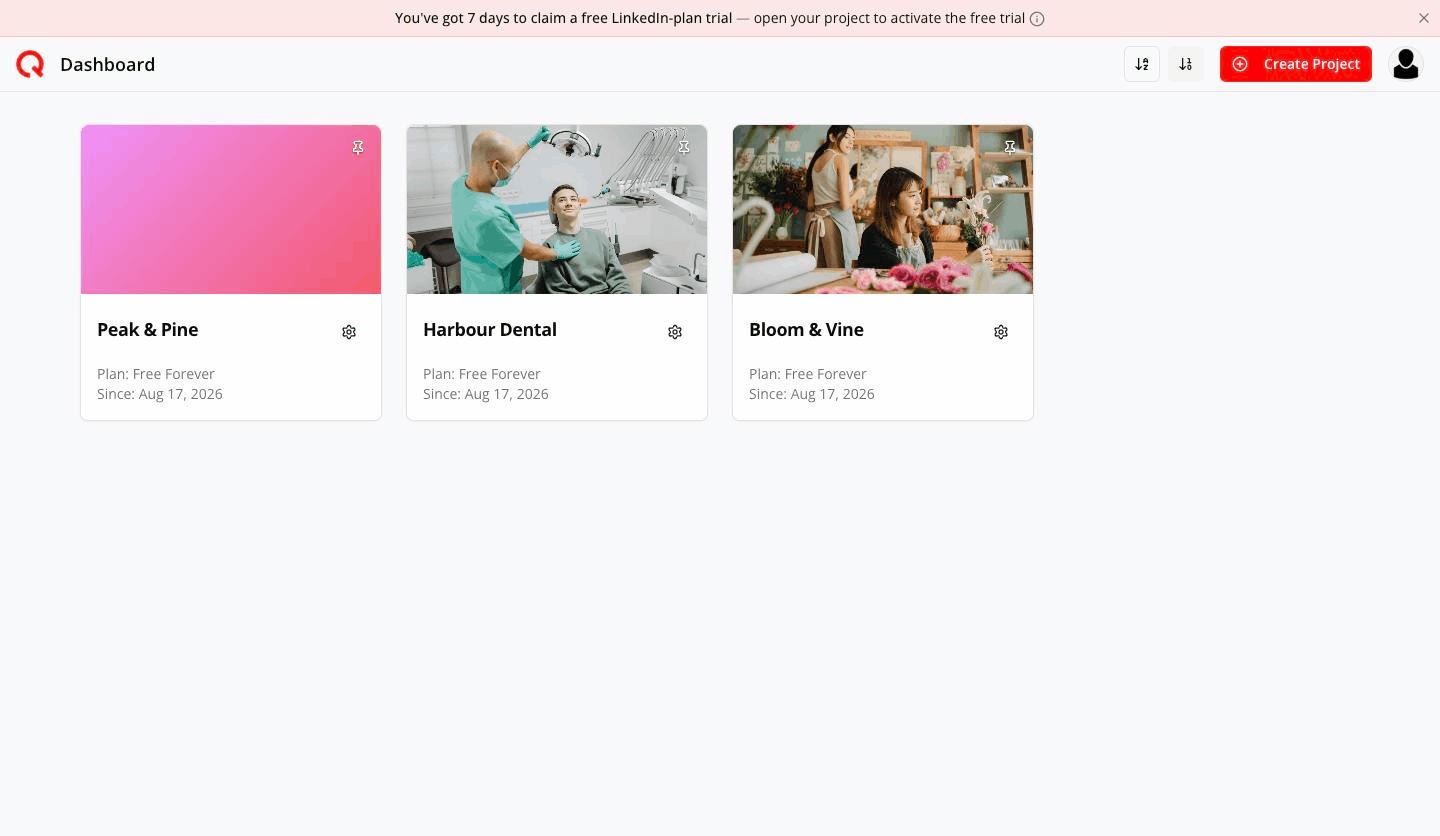
Personal dashboard - Pick any project on a free plan, click its gear icon, and choose Upgrade Project.
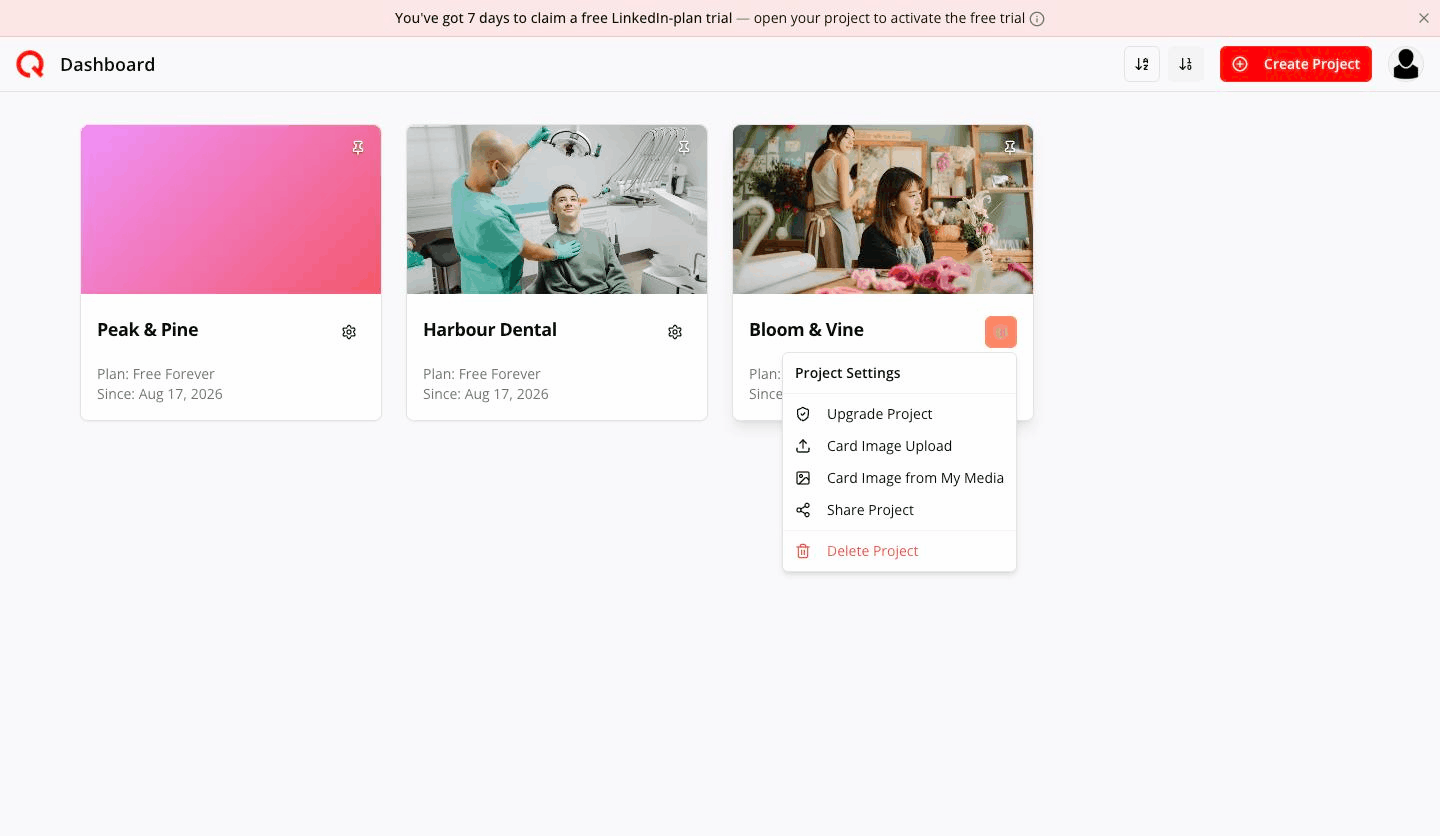
Upgrade Project menu Only a project without a paid plan can start an Agency. If the option is blocked, the message reads Only projects without a paid plan can start an Agency.
- In the pricing window, find the Agency card.
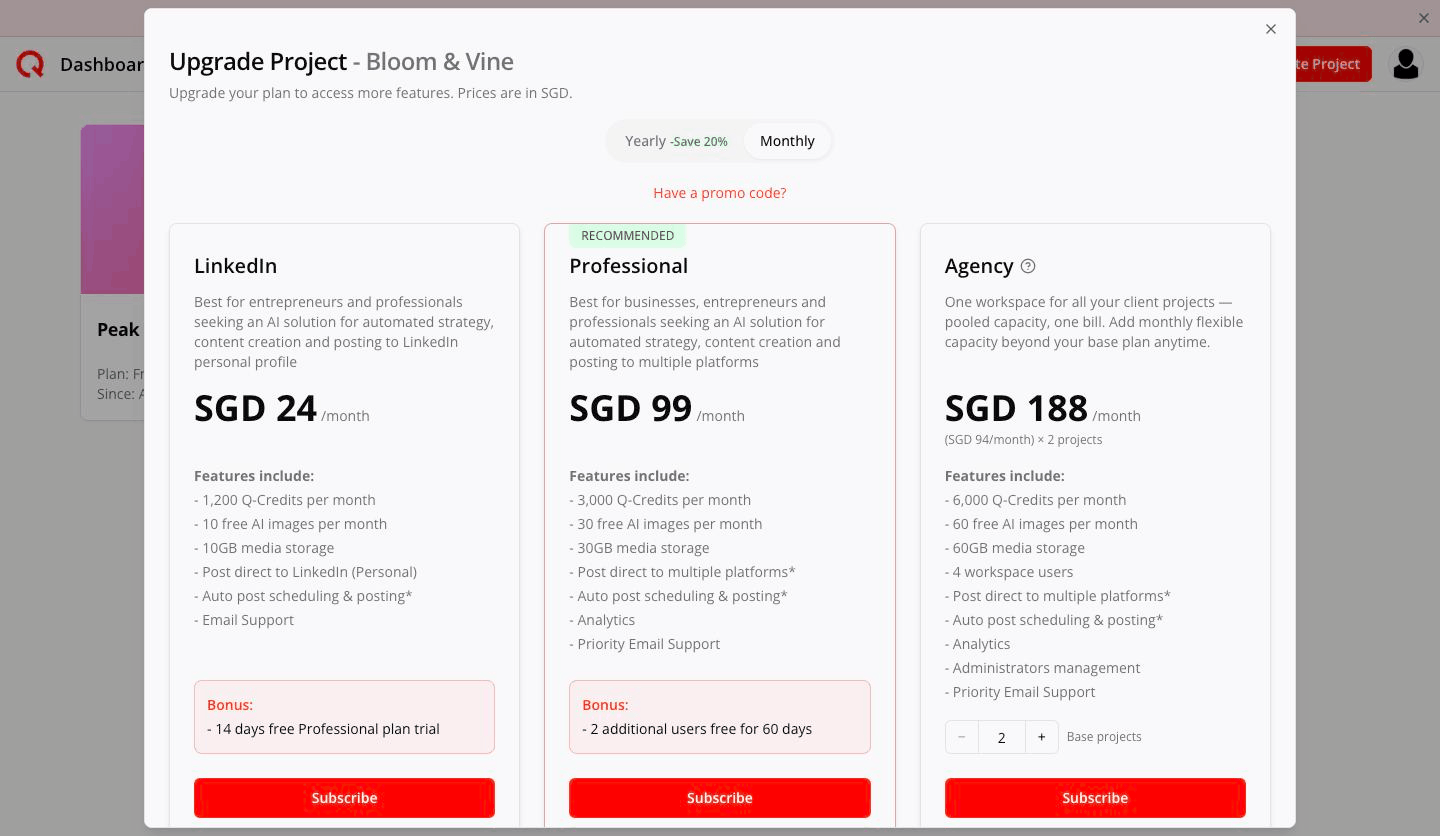
Agency pricing card at 2 base projects - Use the Base projects stepper (2–100) to choose how many projects you want to be able to run Active at once. Everything on the card recalculates — price, Q-Credits, images, storage, users.
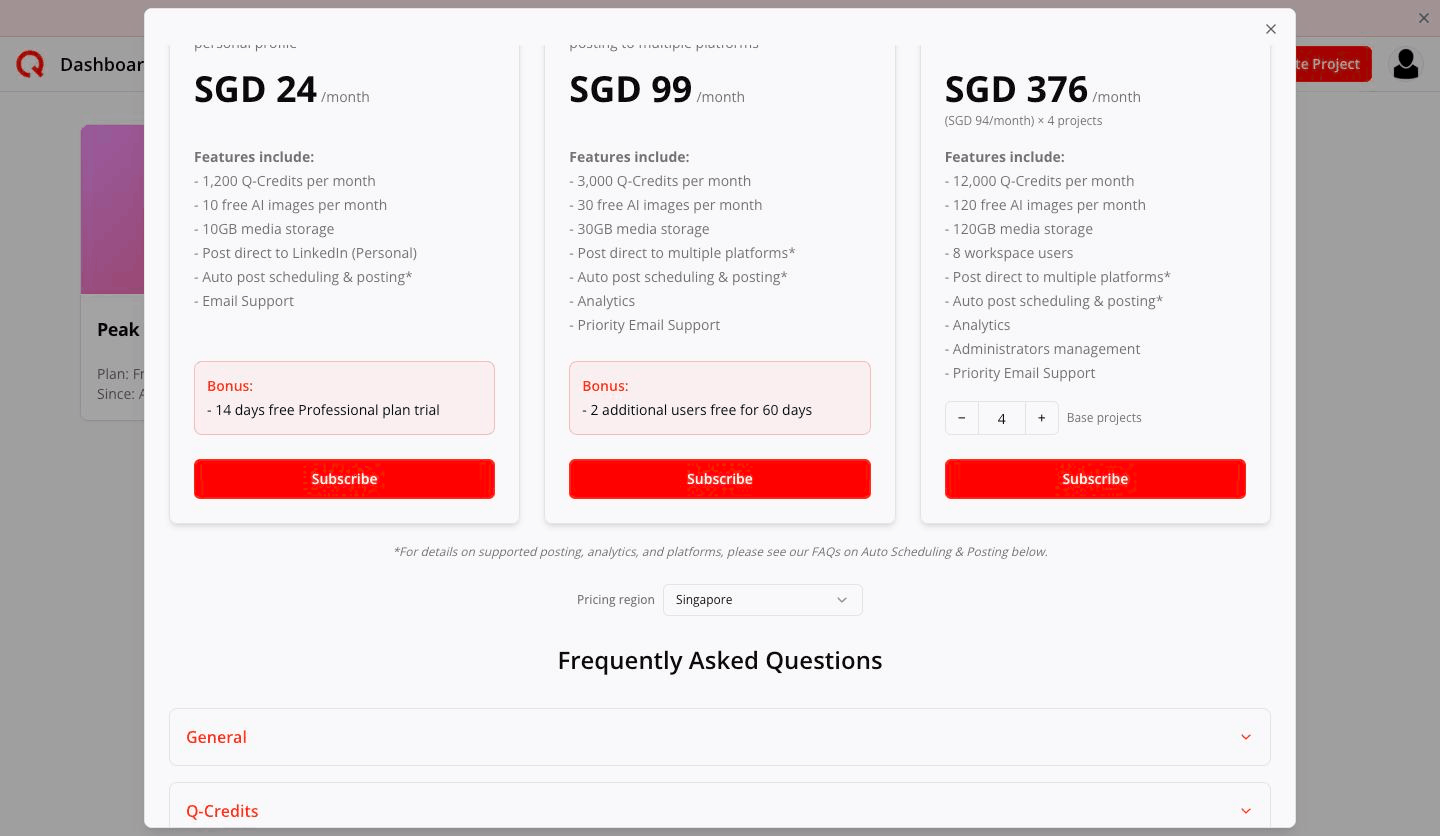
Agency pricing card at 4 base projects - Choose Monthly or Yearly at the top (yearly saves 20%), then click Subscribe.
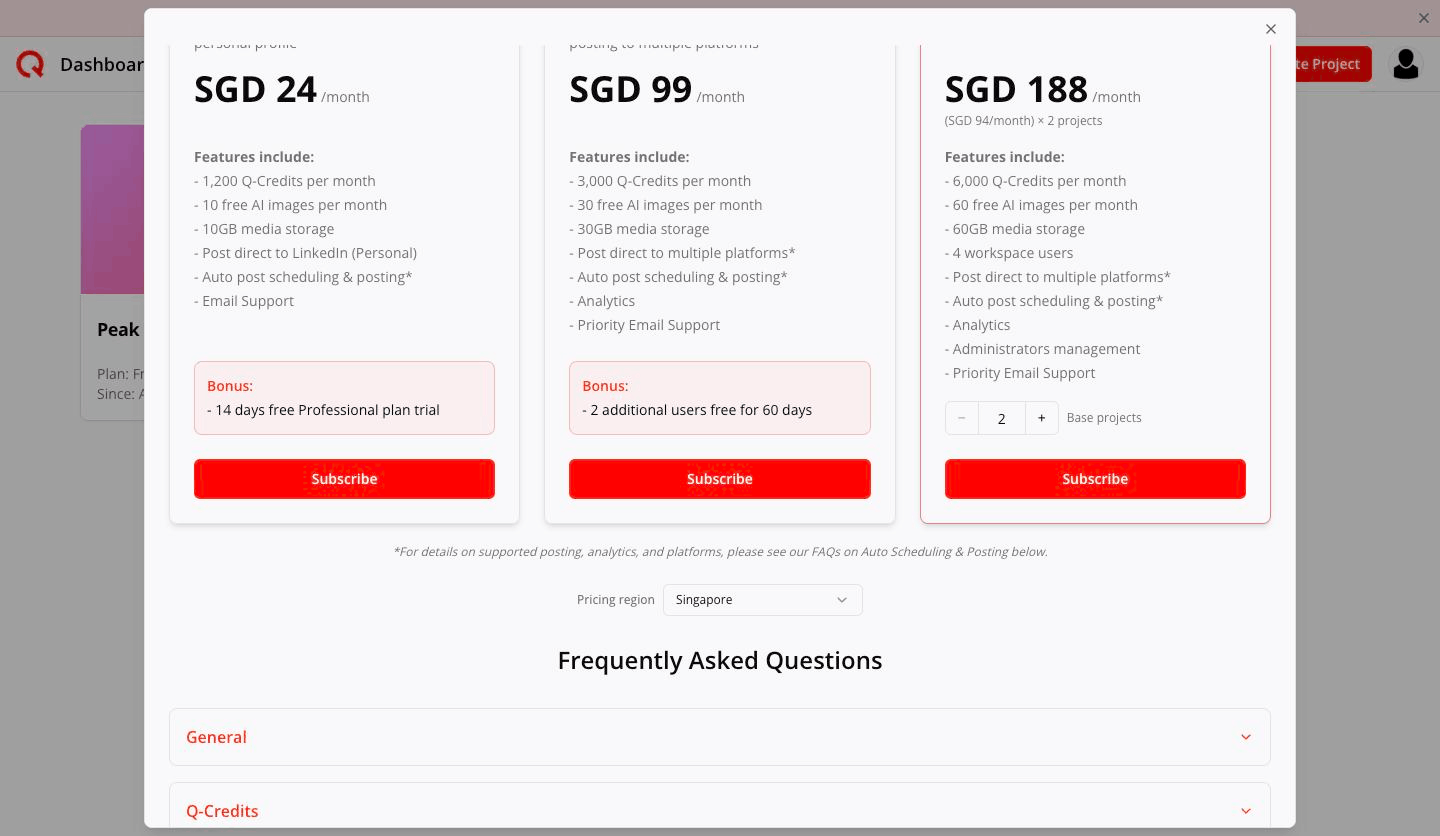
Subscribe button - Pay on the Stripe checkout page. The line item reads Quocia Agency, with Qty equal to your base projects.
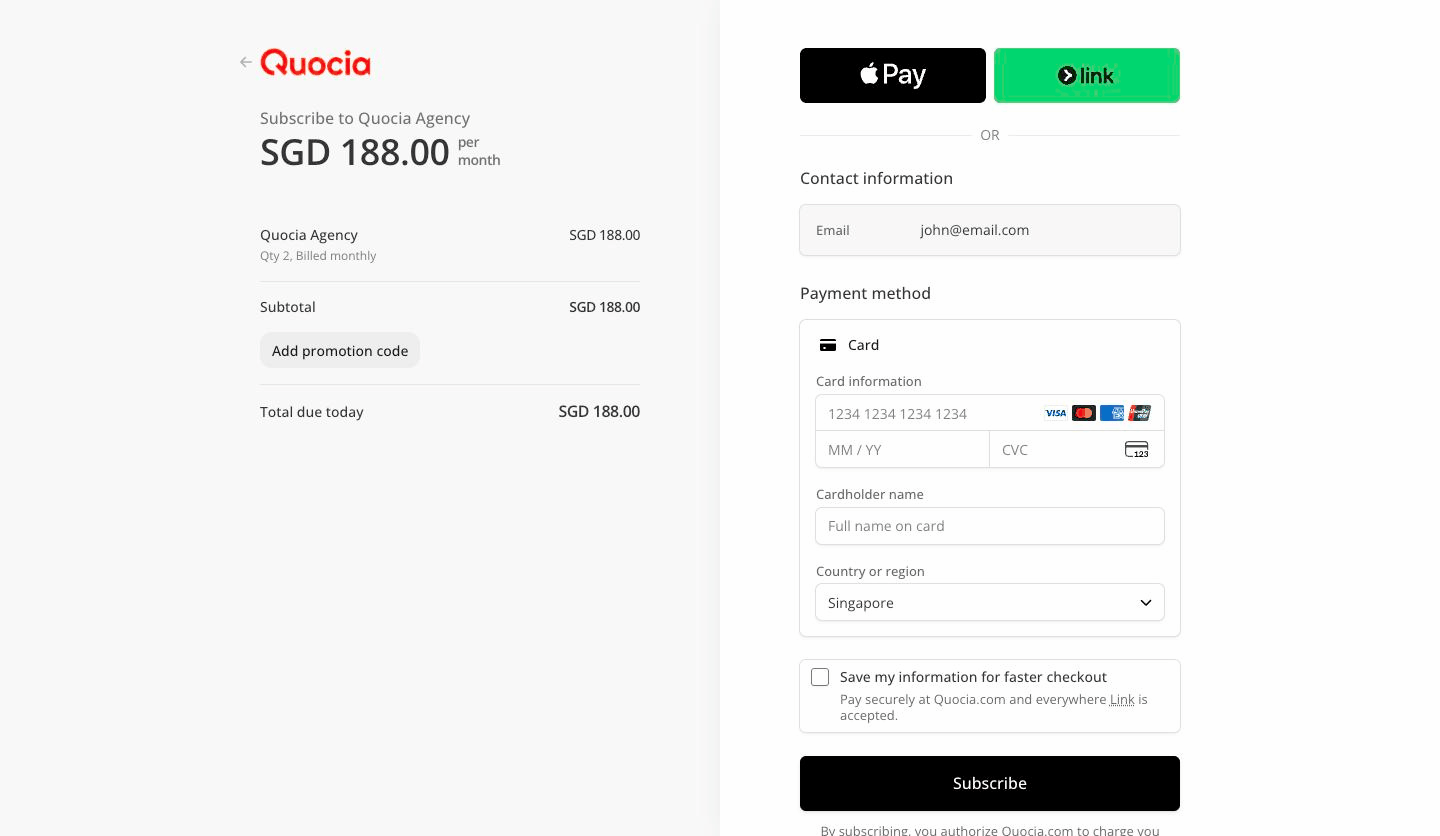
Stripe checkout
What happens next: your new workspace appears in the workspace picker as New Agency, and the project you started from moves into it as a draft. Nothing is Active yet.
Step 2 — Find your way around
Click the workspace name next to Dashboard to switch between Personal and each Agency.
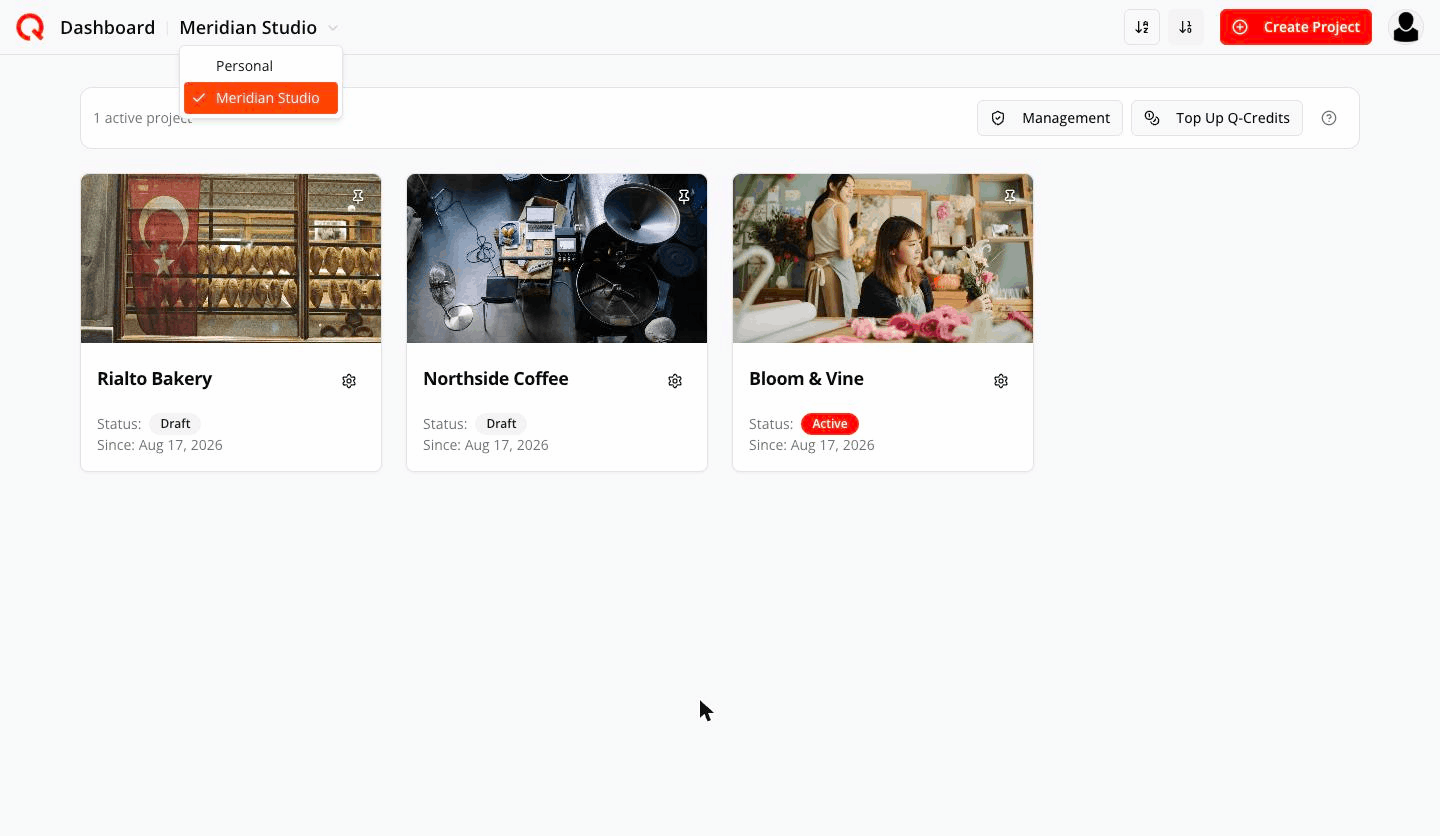
A small red dot next to a workspace means it is new to you — someone has just given you access. It disappears once you open it.
Inside an Agency workspace you get an Agency management bar above your projects: how many projects are Active, plus Management and Top Up Q-Credits. Only Agency owners and Agency administrators see this bar.
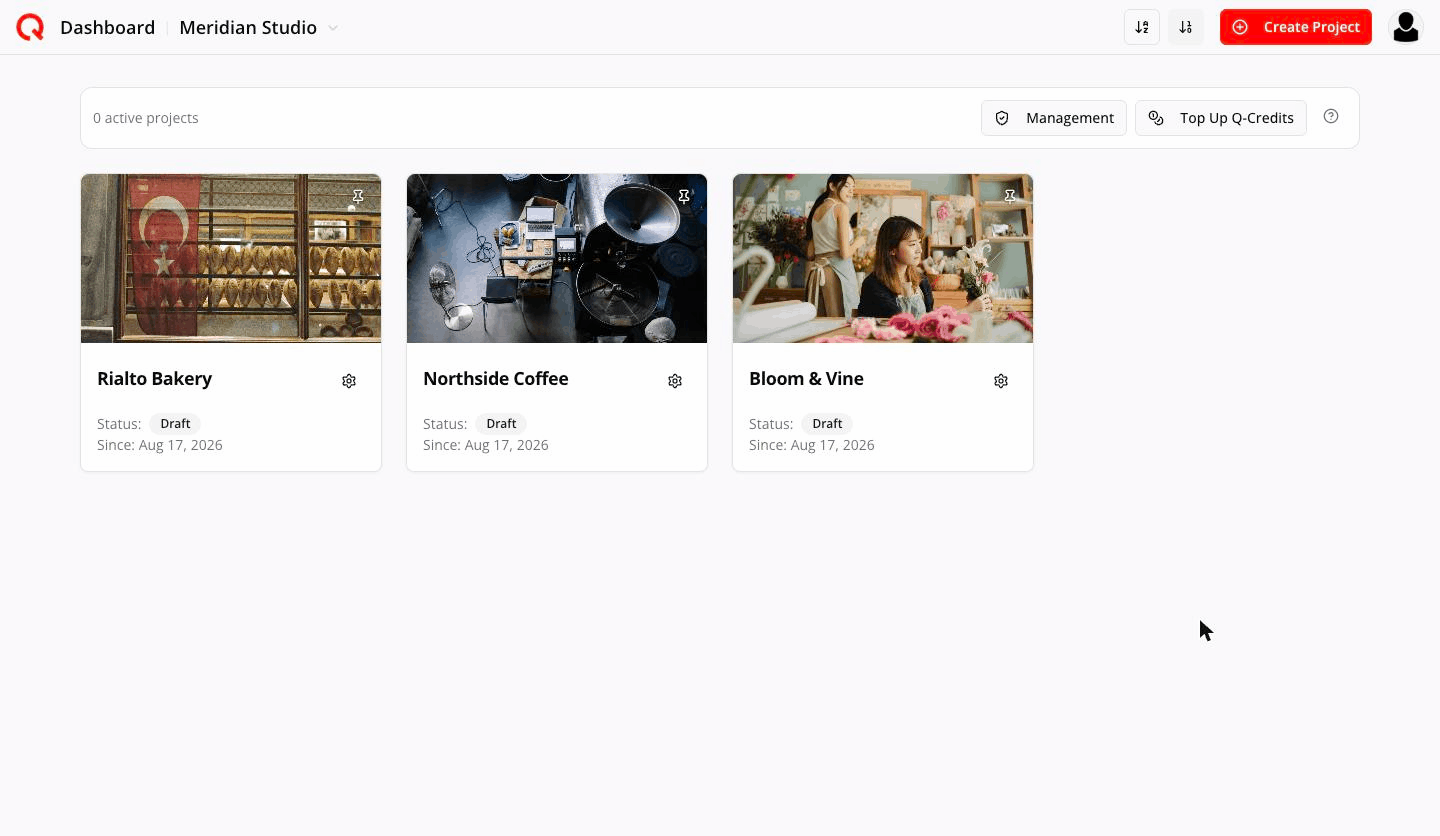
Each project card now shows Status: Active or Status: Draft instead of a plan name.
Step 3 — Rename your Agency
Open Management from the Agency management bar and click the pencil next to the name at the top. (New Agency workspaces are called "New Agency" until you change it.)
Step 4 — Bring your existing projects in (first 7 days only)
For seven days after your first payment, the Import tab lets you move eligible free Personal projects into the Agency permanently.
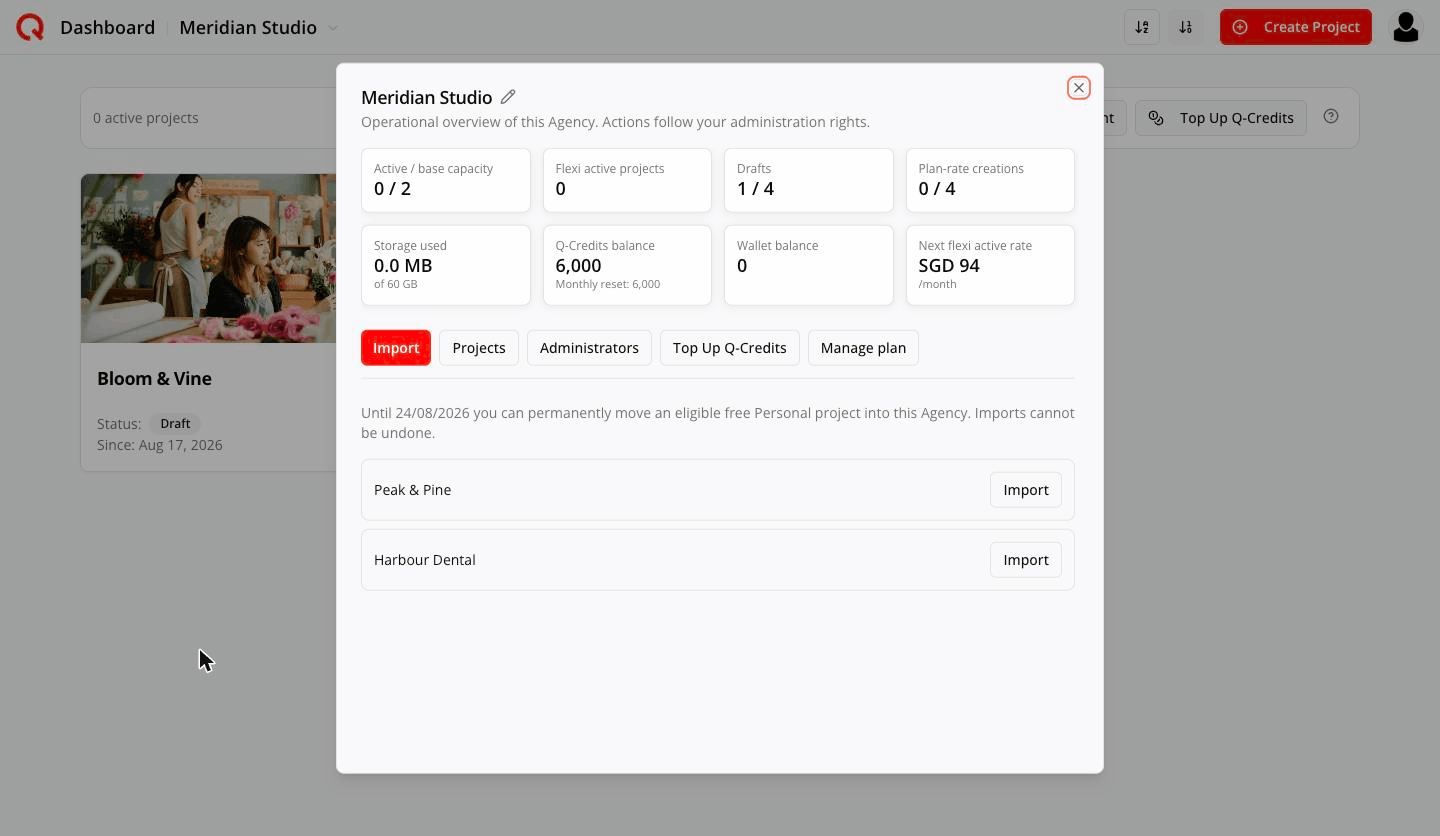
A Personal project is eligible if you own it, it has a completed strategy, it has never been in an Agency, it is on a free plan, and it has at most 3 people sharing it.
Imports cannot be undone, and a project never leaves an Agency. Only the Agency owner can import. After day 7 the tab disappears — create new projects from within the Agency workspace instead.
Step 5 — Add a client project
Click Create Project and build it exactly as you always have — brand info, strategy, content pillars, the lot. It starts as a Draft, so it uses no paid project slot — but it is not free of Q-Credits: generating its strategy spends from the shared pool like any other AI work.
Three limits apply to drafts:
- How many you can hold at once — twice your paid capacity. A 2-project plan can hold 4 drafts. You'll see this as Drafts 1 / 4 in Management.
- What each draft's strategy costs you — there are two rates. Plan-rate is the subsidised rate and spends fewer Q-Credits per strategy generation; standard-rate is the full price. Every Agency gets twice its paid capacity of plan-rate draft creations per month — a 2-project plan gets 4 — shown in Management as Plan-rate creations 0 / 4. Once those are used, further drafts are created at the standard rate.
- How many extra posts you can generate per draft — 15 after the initial strategy. You'll see a reminder the first time:
Agency draft post limit — This Agency draft allows at most 15 additional posts after its initial strategy. 15 of 15 remain.
Step 6 — Make it Active
Click the project's gear → Activate project.
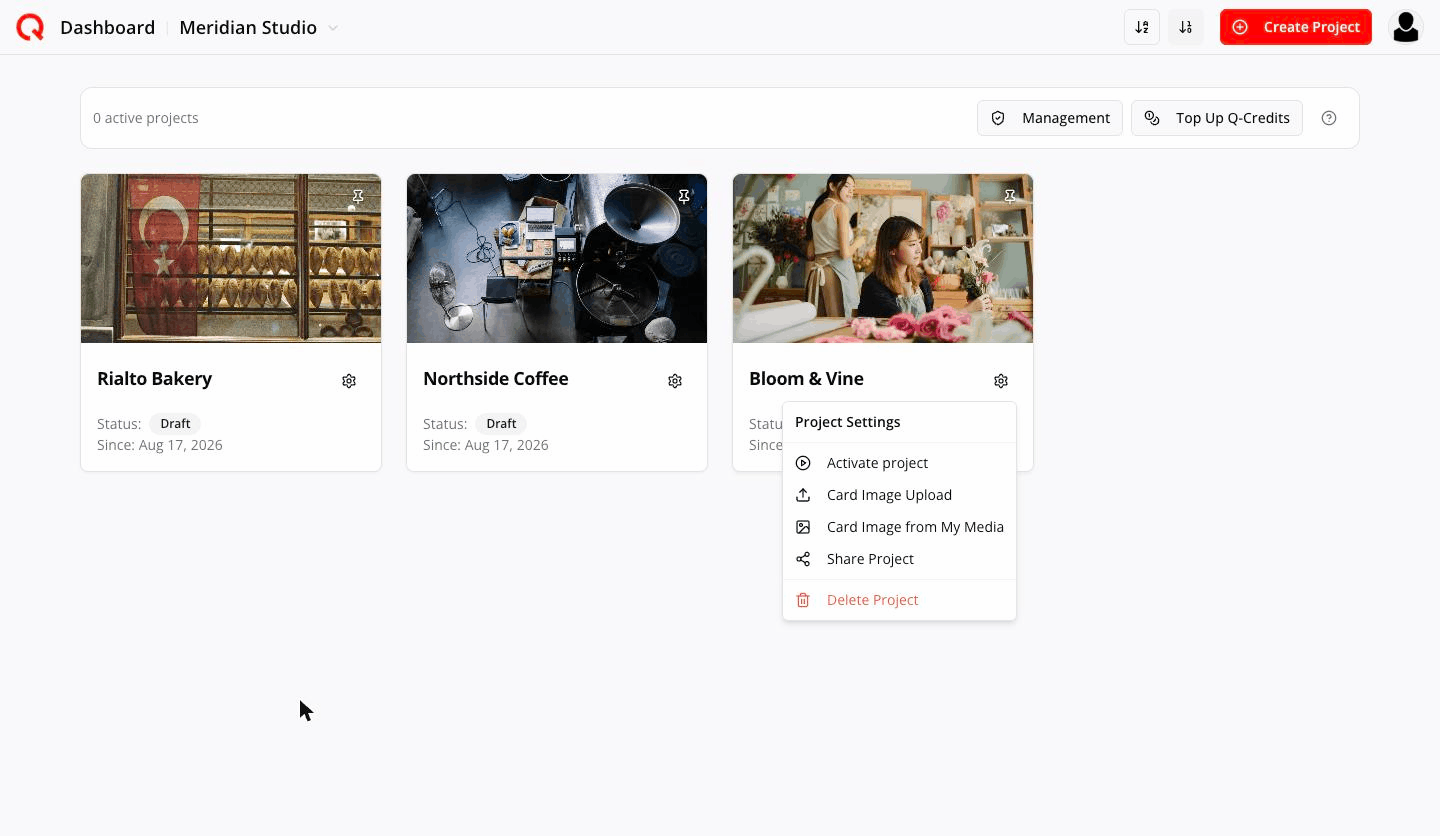
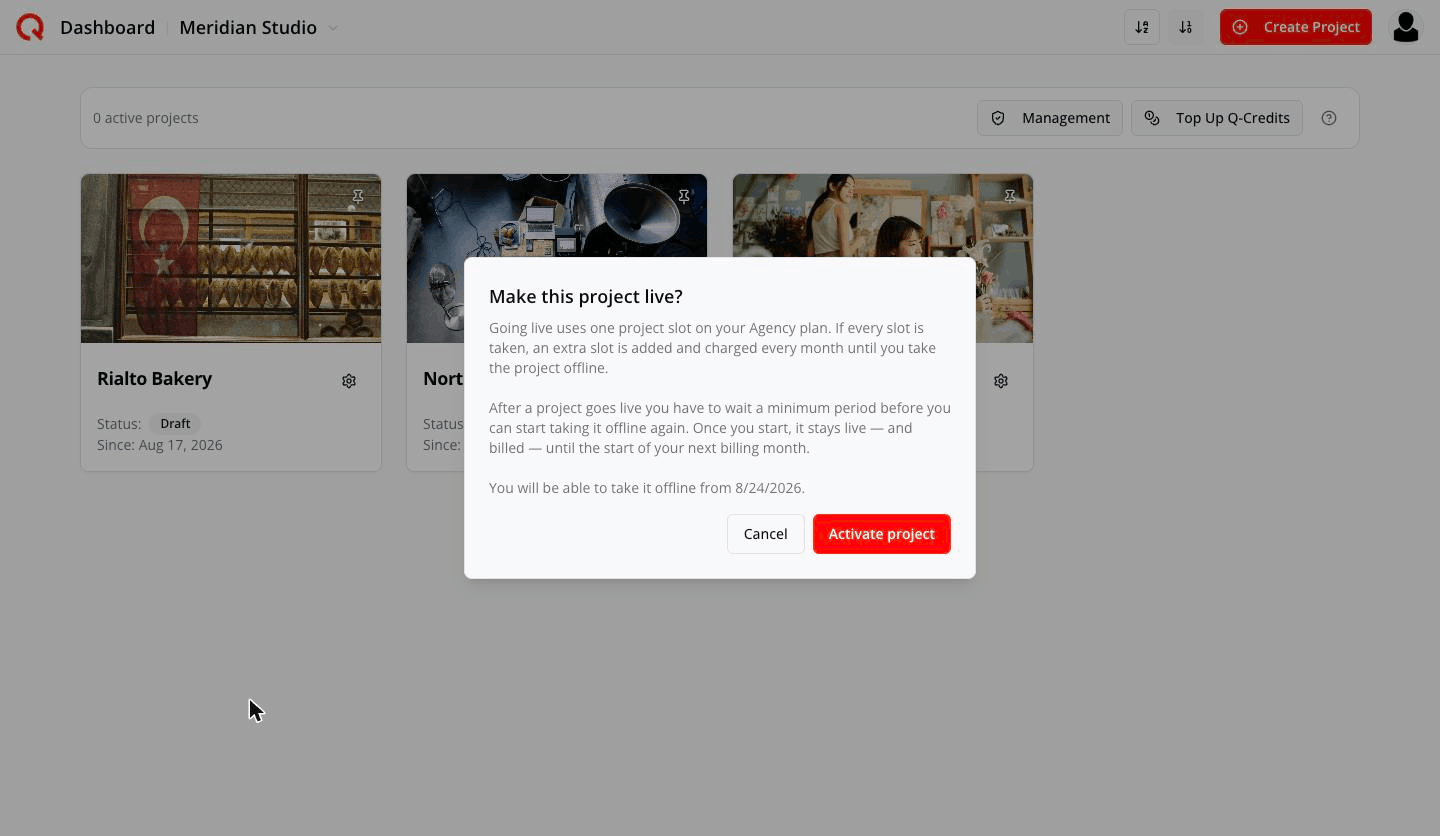
- If you still have a free slot on your base plan, it becomes Active immediately at no extra cost.
- If every slot is taken, Quocia quotes you first:
Activating this project requires 1 additional monthly capacity. Estimated immediate charge: $74. Your saved card will be charged now, and the project activates only after payment is confirmed.
Your saved card is charged, and the project becomes Active once payment is confirmed.
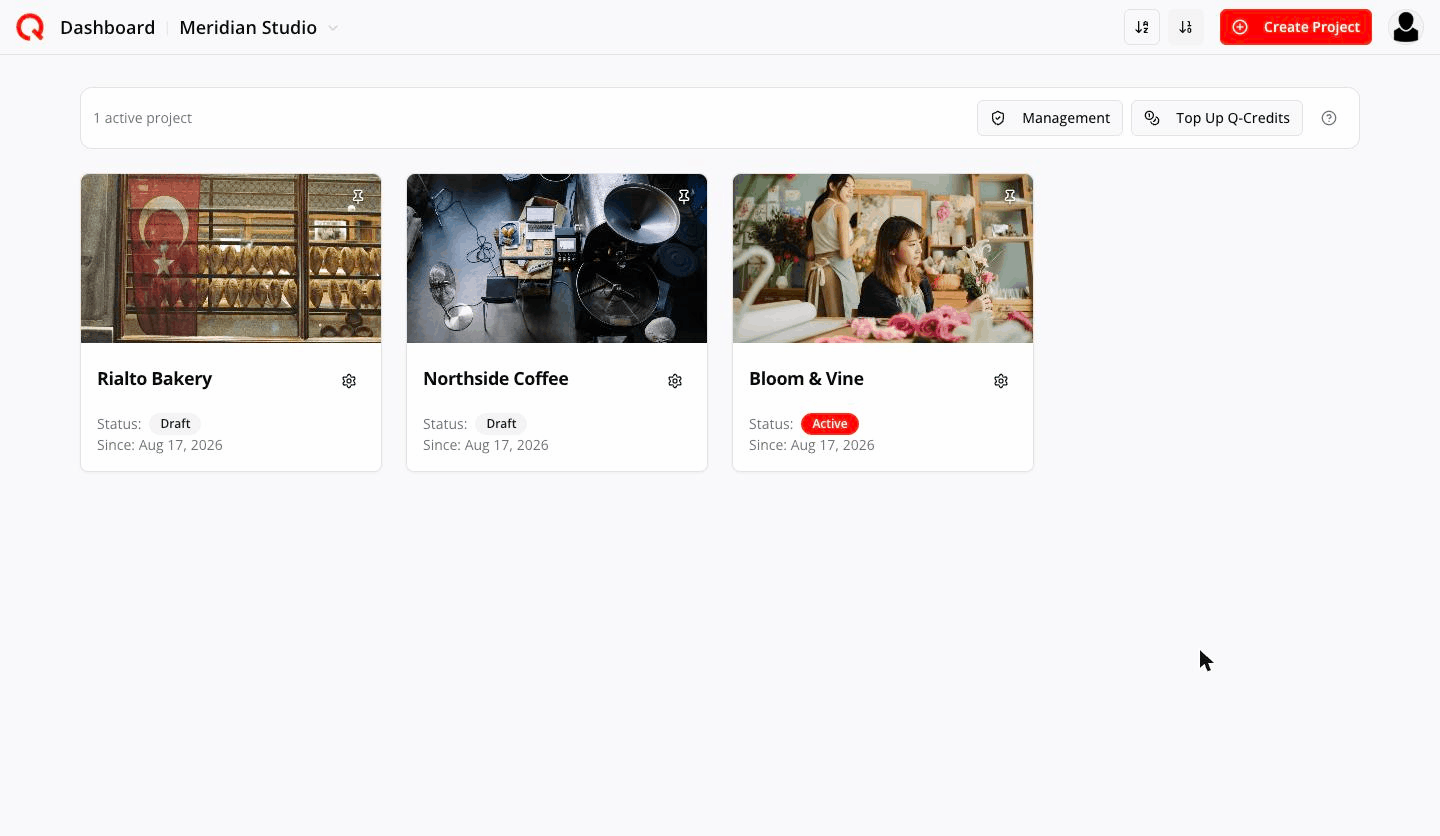
A project needs a completed strategy before it can be activated.
Two things to know before you activate, because both cost you time and money:
- A project must stay Active for seven full days before you can even request deactivation. Ask sooner and Quocia refuses:
This project must be active for a minimum period before deactivation can be requested.
- Deactivation takes effect at your subscription's monthly boundary, not when you ask. The project stays Active — and billed — until the start of your next billing month, then it becomes a Draft. You can undo the request any time before then.
Step 7 — Connect the social accounts
Now that it is Active, the gear menu grows two new options.
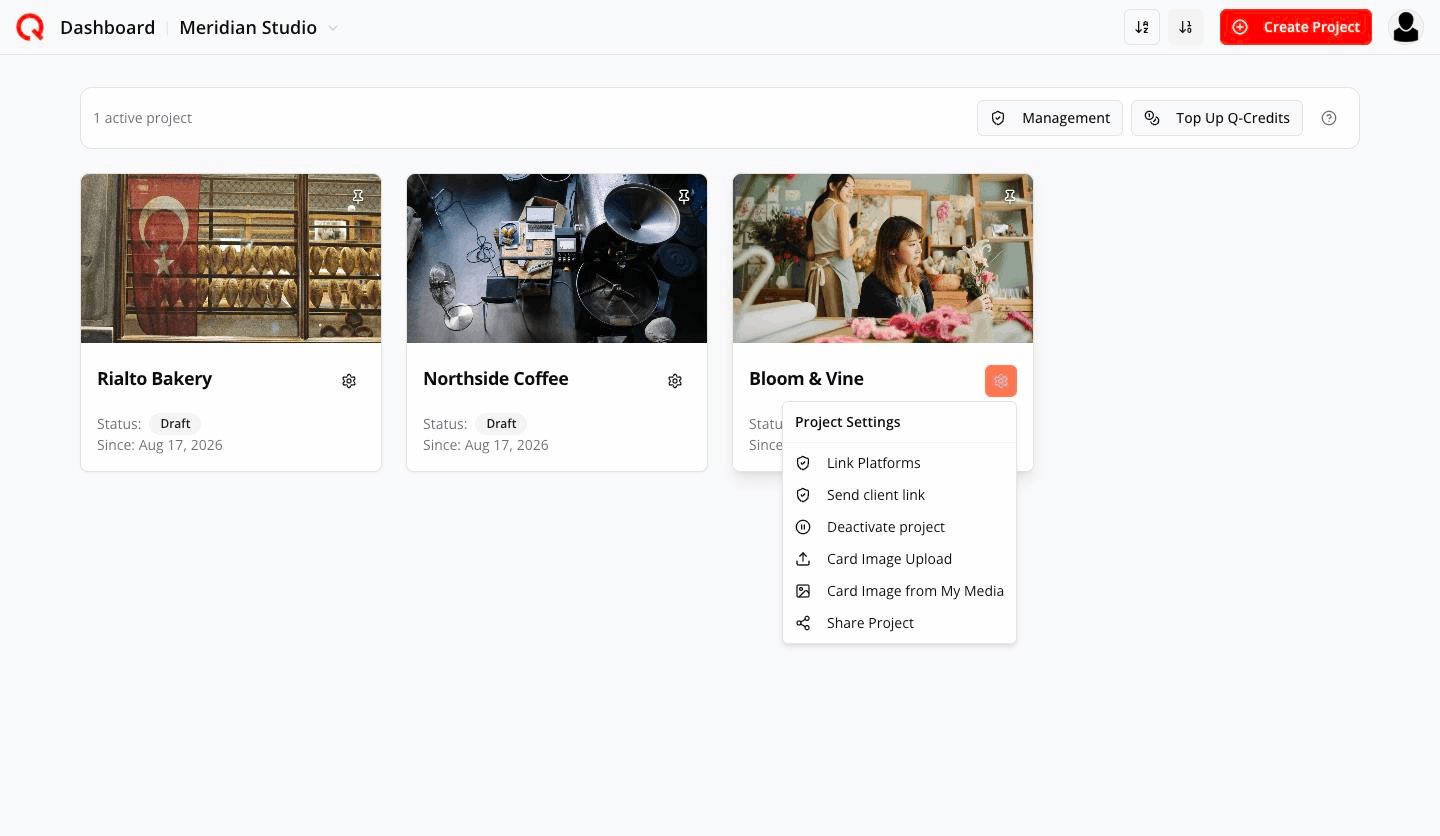
Do it yourself: choose Link Platforms and connect each account.
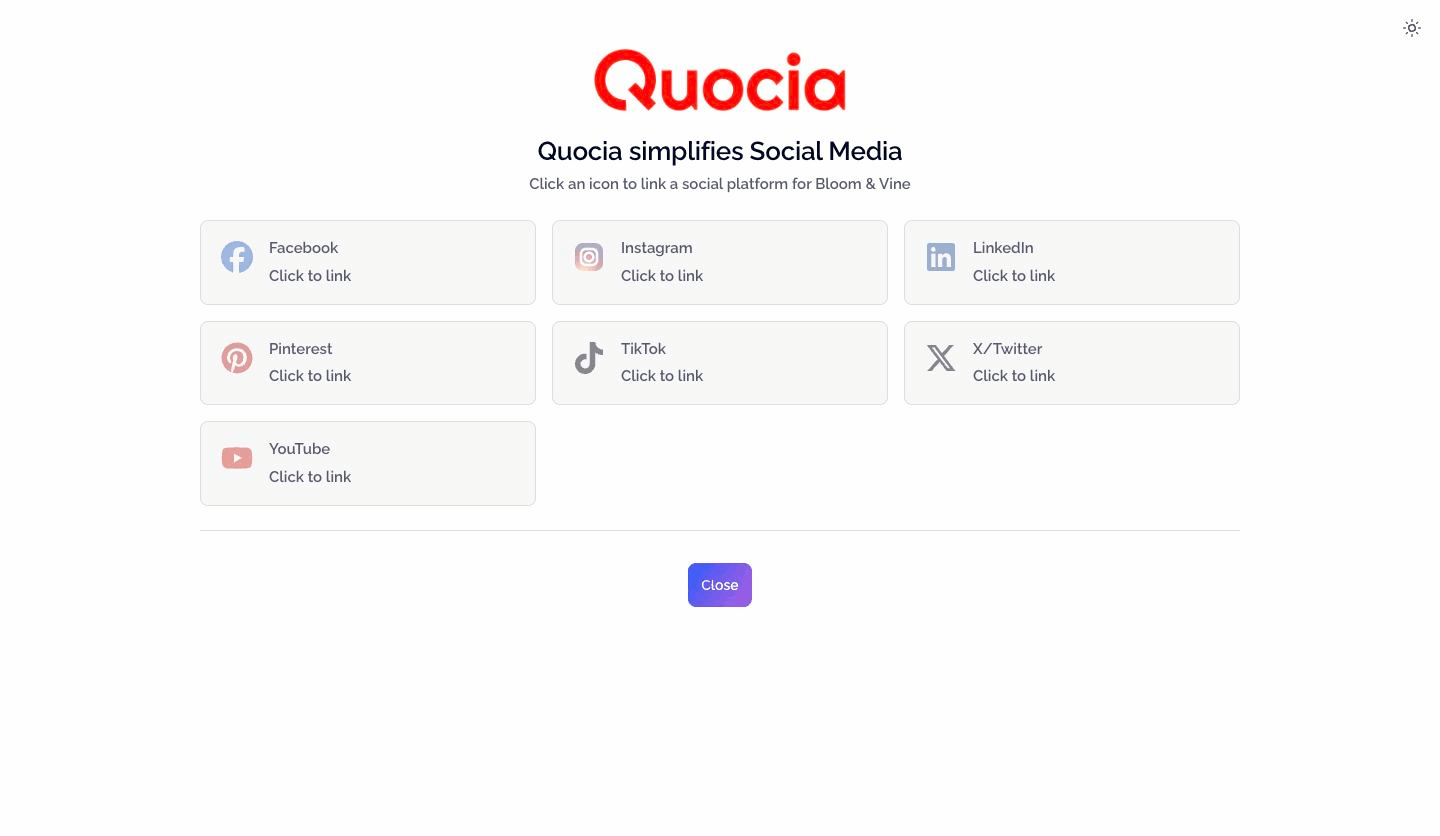
Or let the client do it (they never need a Quocia account) — choose Send client link. See How to get a client to connect their own accounts.
Step 8 — Keep an eye on the shared pool
Everything is pooled. Open Management to see it at a glance:
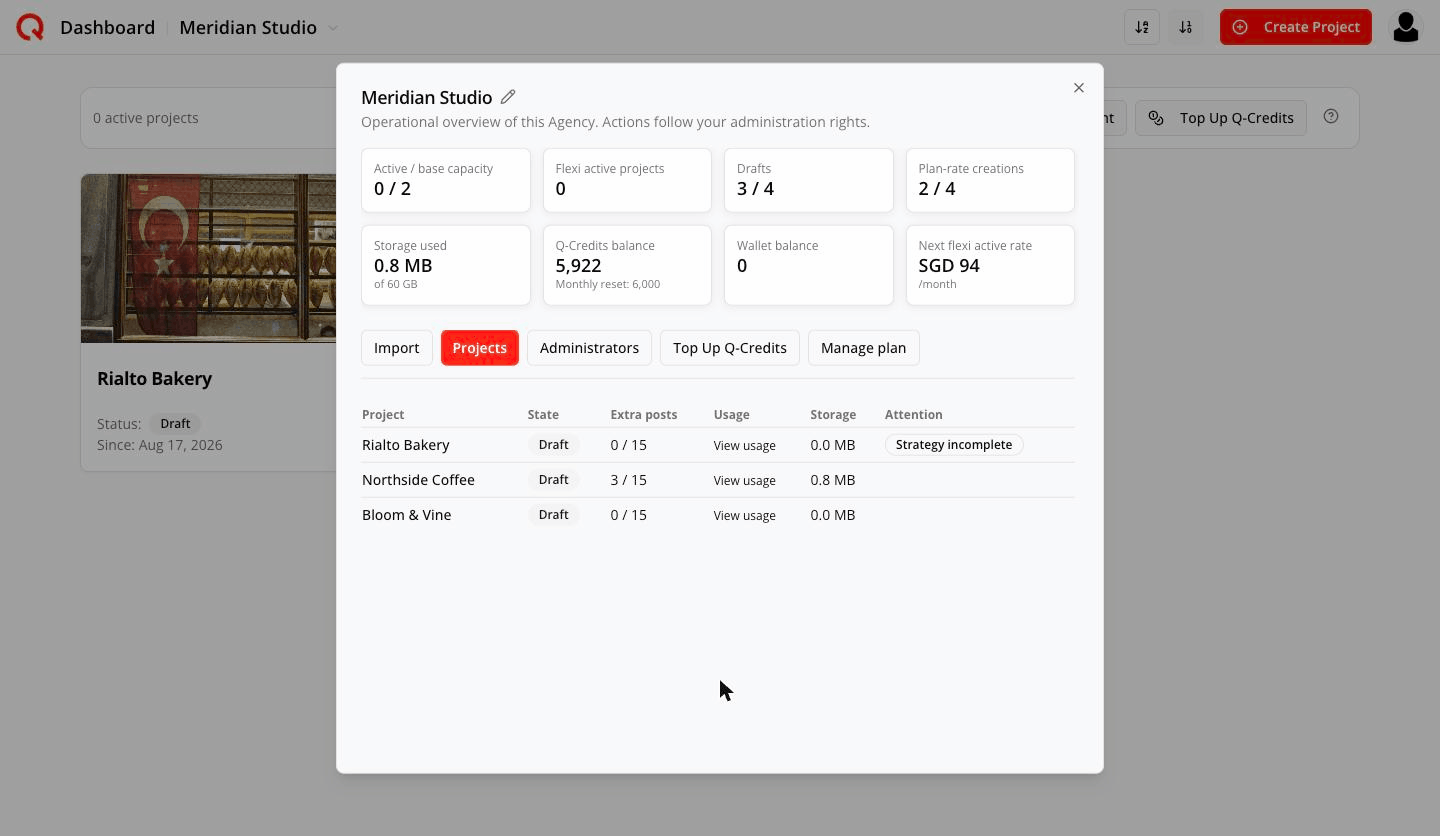
- Active / base capacity — how many are Active vs. how many your plan pays for
- Q-Credits balance — the monthly pool every project spends from
- Storage used — across all projects
- Drafts and Plan-rate creations — your headroom for new work
- Per project: extra posts used, recent credit usage, storage, and anything needing attention
Your first week, in order
- Buy the plan with the base size you actually expect to run Active.
- Rename the Agency.
- Import any existing free Personal projects — this window closes after 7 days.
- Build client projects as drafts. Pitch from the draft.
- Activate the ones that sign.
- Connect their accounts (yours, or via a client link).
- Add administrators so your team can work without your password.